
There’s a simple thing that I did some time ago that I have never regretted. I take a lot of screenshots in my role as newsletter editor, trainer, course developer, and business consultant. One day, I wanted a screenshot that I took a few days ago and it wasn’t easy to find, so I pinned it into File Explorer. It’s a simple thing but it’s also crucial to my workflow now.
Here’s how you can pin your screenshots folder
Step 1: Find your screenshots folder. It is located at C:\Users\<your username>\OneDrive – <your name>\Pictures\Screenshots
Step 2: Browse to the Pictures folder in OneDrive. Locate the Screenshots folder and right click on it. Choose the Pin to Quick Access option.
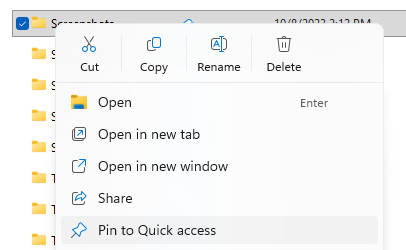
Pin everything!
The Screenshots folder is now conveniently pinned for quick access.
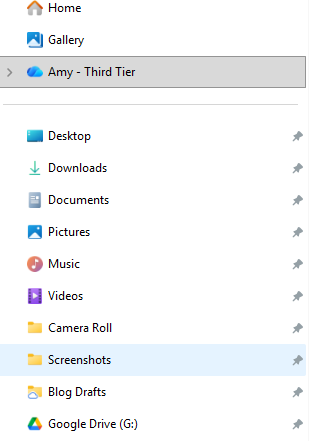
You’ll notice that I have a bunch of things pinned. Most of it is there by default but everything after Videos was pinned by me. So help your workflow and go ahead and pin all of your most used folders.