I’ve never been a fan of meeting recordings because I never go back and listen to them anyway. I’m also not a fan of meeting bots attending meetings and taking up valuable screen real estate. They annoy me to no end. Black boxes on the screen, serving me no purpose and something out numbering the people in the meeting.
I am a fan of meeting summaries. So this new OneNote feature, which listens without joining the meeting and then hands the results over to Copilot’s Meetings Notebook, feels like it was built just for me. And I’m loving it.
Like other meeting capture apps, it creates a summary after the meeting ends. Helpful, but not enough.
Copilot then puts that summary into a notebook I can access through OneNote. In that notebook, I can add resources like my blog locations and create documents. I’ve also set up a task for Copilot to index my meetings by category every morning.
Now, every morning, I get an email confirming that the update task ran.
| Hi Amy Babinchak, |
| Microsoft 365 Copilot has successfully completed a prompt you scheduled. You can now review the following results and take any necessary next steps. |
| Update meeting index |
Here’s what my Meetings Notebook looks like: Copilot on the left, content in the middle, and meeting summaries and related resources—including the index—on the right. As this notebook grows, I’ll be leaning on that index heavily.
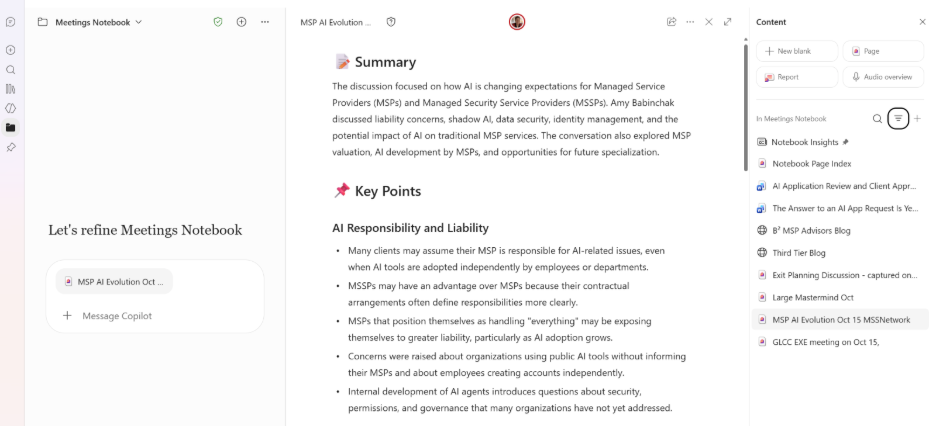
In the rightmost pane, you can see the resources I’ve added: my two blog locations, for Copilot to use alongside the meeting notes. I’ve also created a couple of documents. One is a form for AI app approvals, and the other is a blog post about the need for such a form and how to build a service around it.
As a content creator and advisor, my work life revolves around meetings. These meetings often inspire new content. Now, my inspiration and content creation happen in the same place, grounded only in the resources I add and the meeting content. That’s it. Simple.
It’s what I’ve always needed but never built for myself—until now.
How it works
I’m not locked into capturing every meeting I attend. Instead, I right-click the OneNote icon in the system tray and select New Capture.
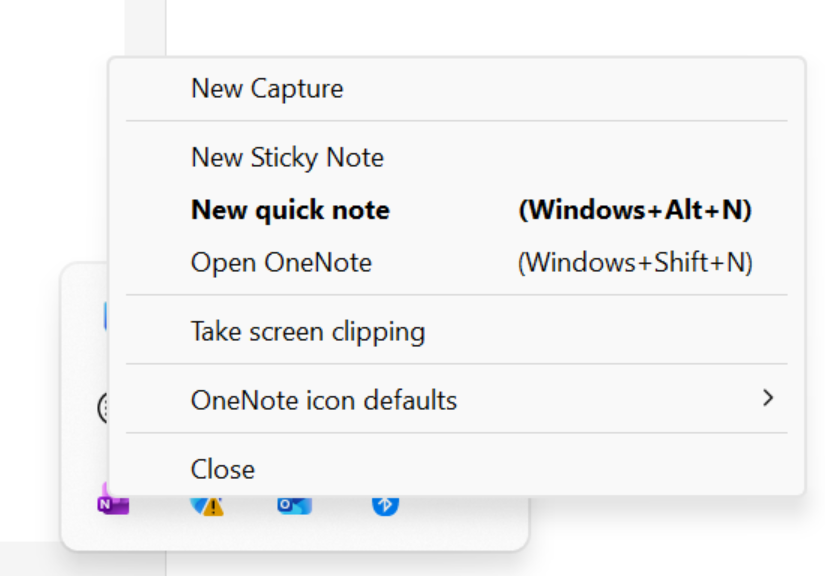
That way, I’m not junking up the notebook with every meeting. Instead, I’m gathering the useful ones that might hold future inspiration.
What can it capture from?
I think of it as capturing anything that passes through my speakers, without needing a connection to a specific app. So far, I’ve captured meetings in Teams, Zoom, and a random podcast studio.
Officially Microsoft says, OneNote Capture handles in-person discussions and informal sessions on mobile, plus non-Teams online meetings such as Zoom, Webex, Google Meet, and other browser-based meetings on Windows. It can also be started manually when automatic detection does not apply
https://support.microsoft.com/en-us/microsoft-365-copilot/capture-conversations-copilot-notebooks
Official Microsoft list
On iPhone and iPad:
- In-person conversations, including hallway conversations and quick syncs
- Whiteboard sessions, combining a photograph, typed notes, and a transcription
- Voice notes and ideas
- Brainstorming sessions, combining live audio with typed notes
On Windows:
- Zoom meetings
- Webex meetings
- Google Meet meetings
- Other browser-based and third-party online meetings
- Conversations started manually through OneNote → New Capture, including sessions outside an automatically detected meeting
What do you get when you capture a meeting?
- You get a document summarizing the meeting and identifying assigned tasks.
- You get a transcript.
- You do not get a recording of the meeting.
- You can ask for a podcast-style audio summary. It’s as fun as it sounds.
For me, these things are valuable without adding another bot to everyone else’s meeting experience. It’s such a breath of fresh air.
My Meetings Notebook brings those conversations, the resources I choose, and the drafts they inspire into one place. I can revisit an idea, pull out a follow-up, or turn a discussion into content without sitting through a recording. That’s the difference between collecting meeting notes and putting them to work—and it’s why this has become such a useful part of my day.